Tag: install

  • Installing LAMP in Ubuntu

    Following are the steps to get Apache, MySQL and PHP installed on a Ubuntu system.

    Installing Apache:

    In the terminal window issue the following command

    sudo apt-get install apache2

    To test if Apache has installed successfully, open a browser and browse to http://localhost. A message “It works” will be displayed.

    Installing PHP

    In the terminal window issue the following command

    sudo apt-get install php5 libapache2-mod-php5

    Once the installation is complete, to get php working, restart apache server by issuing the following command

    sudo /etc/init.d/apache2 restart

    To test that PHP has been successfully installed, quickly create a test PHP script

    sudo gedit /var/www/test.php

    In the gedit window, type a script and save the file

    Open up a browser window and open the test.php file created. The PHP application environment information will be displayed.

    Installing MySQL

    In the terminal, run the following command

    sudo apt-get install mysql-server

    That should get mysql installed. You will be prompted for a ‘root’ db user password. Enter it.
    To test mysql, in the terminal issue,

    mysql -u root -p

    Enter the root user password for mysql server. You will be launched into the mysql prompt.

    Installing phpMyAdmin

    To install phpMyAdmin, issue the following command at the terminal

    sudo apt-get install libapache2-mod-auth-mysql php5-mysql phpmyadmin

    To test phpmyadmin, open a browser and navigate to http://localhost/phpmyadmin.
    Thats it!
  • Installing Rails : Local gem install

    After a unsuccessful installation of rails that took nearly 5 hours, I decided to get rid of Ruby. But the geek inside me, wanted me to go for the kill. That started the quest of successfully installing and deploying rails on WAMP server. Here are the steps.

    Requirements:

    Installation Instructions:

      Install WAMP and Ruby on the machine.
      Extract the Ruby Gems Zip file to any location and open a command prompt window.
      Run setup.rb from the command prompt in the location where the zip was extracted.
      Open command prompt and navigate to the folder where the downloaded gems are located.
      Install Rake using the following command.
    gem install rake-x.x.x --local
    
      Here x.x.x stands for the version number, for example, to install rake-2.3.2.gem run it as ‘gem install rake-2.3.2 –local’.
      Install Active Support, Active Record, Action Pack, Action Mailer and Rails using the command as below
    gem install gem-x.x.x --local
    
      Replacing the gem- to the current gem to be installed.

    This will get Rails installed on the machine. The total install time should be close to 10 minutes.

  • Rails Installation

    Installing Rails needs a lot of patience. The command is simple “gem install rails”. But it is a resource hungry and a time consuming installation.

    I started the installation at 00:00:00 HRS and it is 03:22:23 HRS now and the installation is still going on.

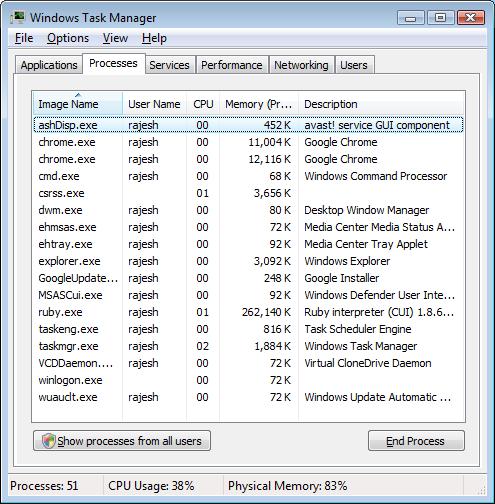
    And look at the memory footprint of the ruby program that is installing rails.

    Mem footprint
    Mem footprint

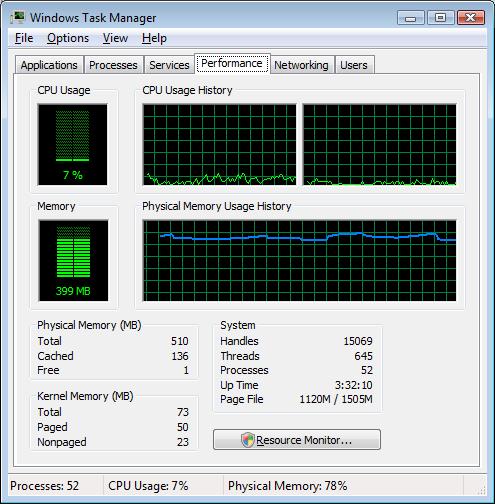
    And here is the Performance Statistics:
    Performance Stats

    Why is an installation taking such a long time?