Tag: .net

  • Jupyter Notebook for C# – Install Guide

    If you are trying to install and try Jupyter Notebook for .Net (C#), you will see a lot of install instructions for the .Net Core 3.1.2 with dotnet-try command. .Net Core 3.1.2 is out of support. I had the same issue here and in this post, I am trying to document how to get Jupyter Notebook on my Windows machine to work with .Net code support.

    Install .Net Core Runtime

      Get the latest version of .Net Core installed from https://dotnet.microsoft.com/en-us/download. The version as of this writing is .Net 8.0

      Install dotnet-interactive

      Next, open up a terminal window and run the command below to install dotnet-interactive. You will receive a successfully installed message.

      dotnet tool install --global Microsoft.dotnet-interactive

      Install Jupyter

      In the terminal window issue the following command

      dotnet-interactive jupyter install
      

      Download and Install Anaconda

      This is required to run the Jupyter kernel. https://www.anaconda.com/download#
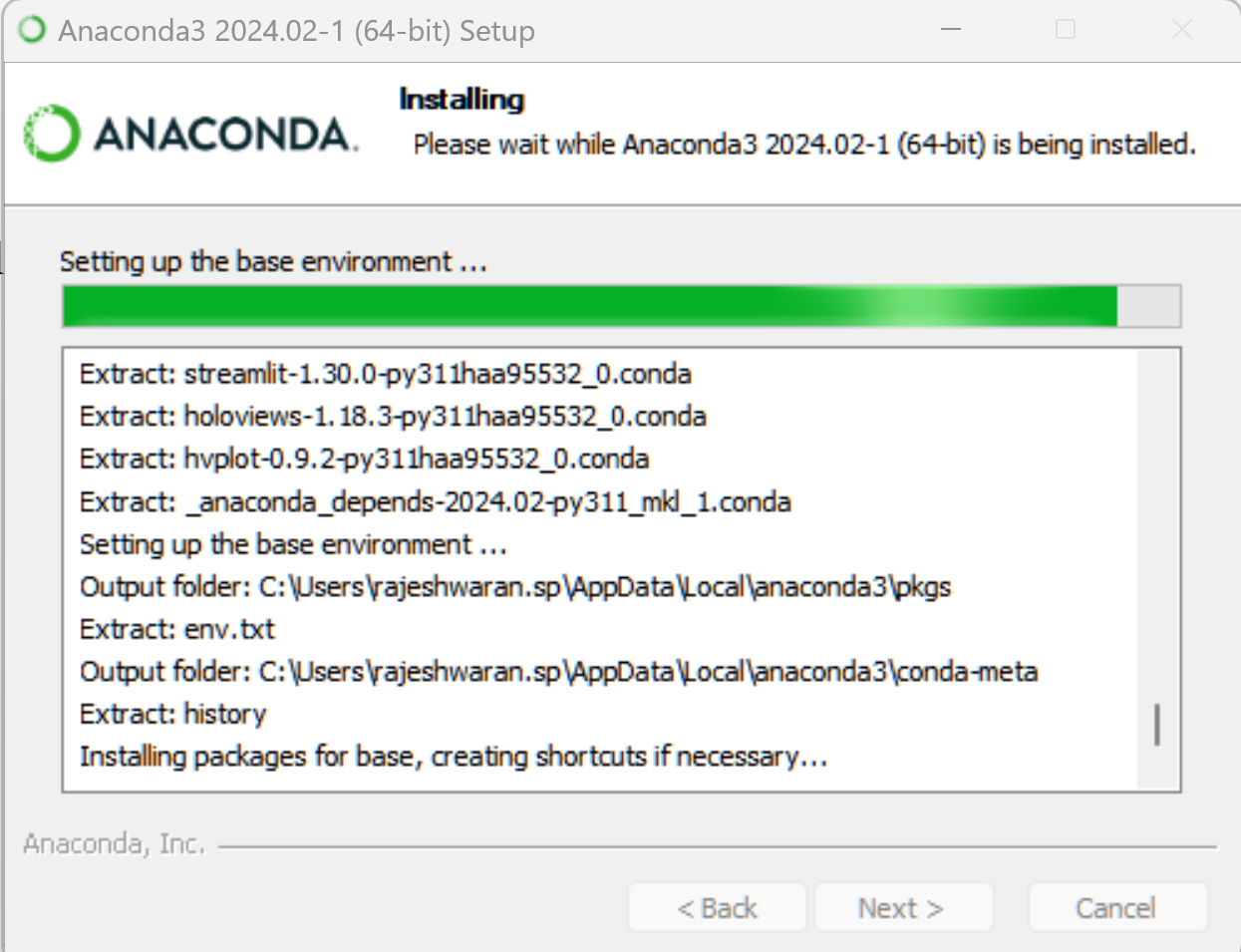
      Open Anaconda Prompt from the Start Menu. You can try the .Net CSharp for Jupyter by issuing the following command in the Anaconda prompt

      jupyter kernelspec list
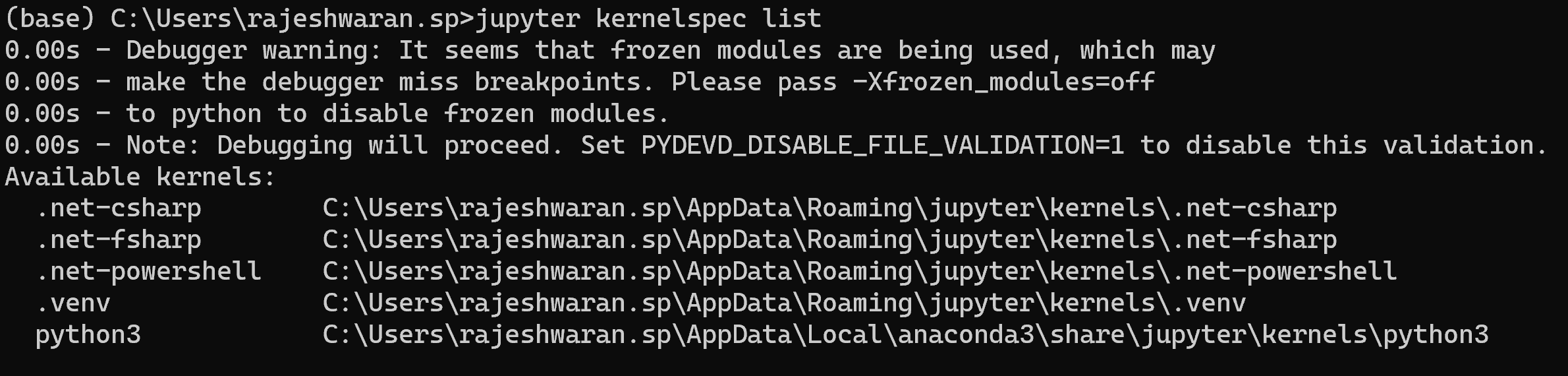
      Now execute the following command to start a new notebook. This will start a browser instance with a new jupyter notebook web version interface.

      jupyter notebook

      Click on the ‘New’ button on the right top corner to create a new notebook.
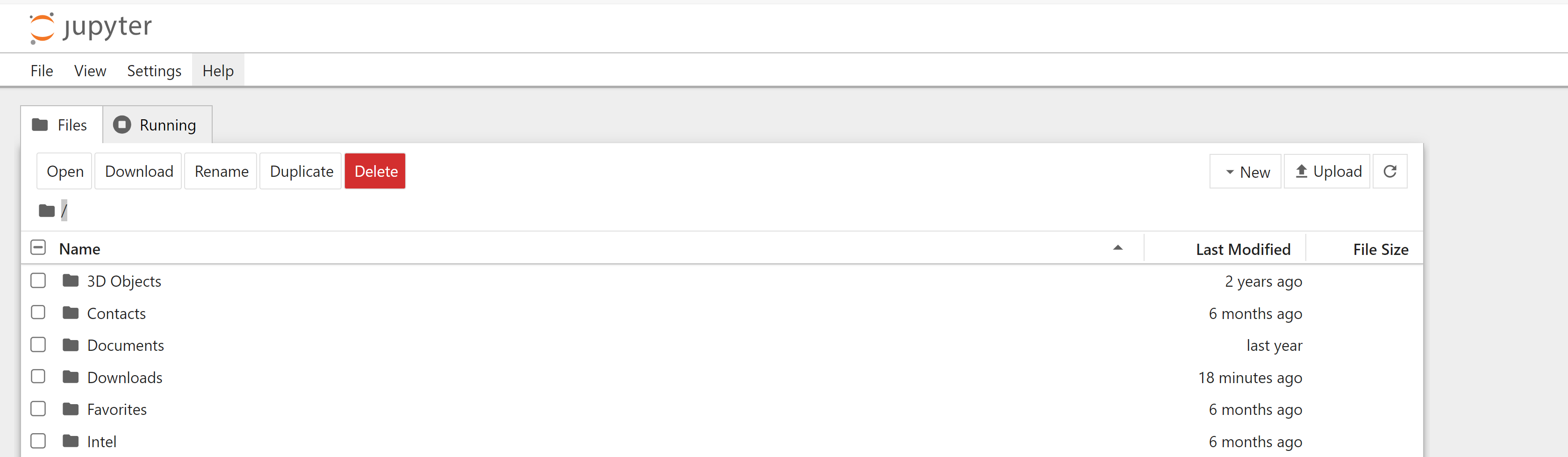
      In the new notebook, you can pick the .Net (C#) kernel
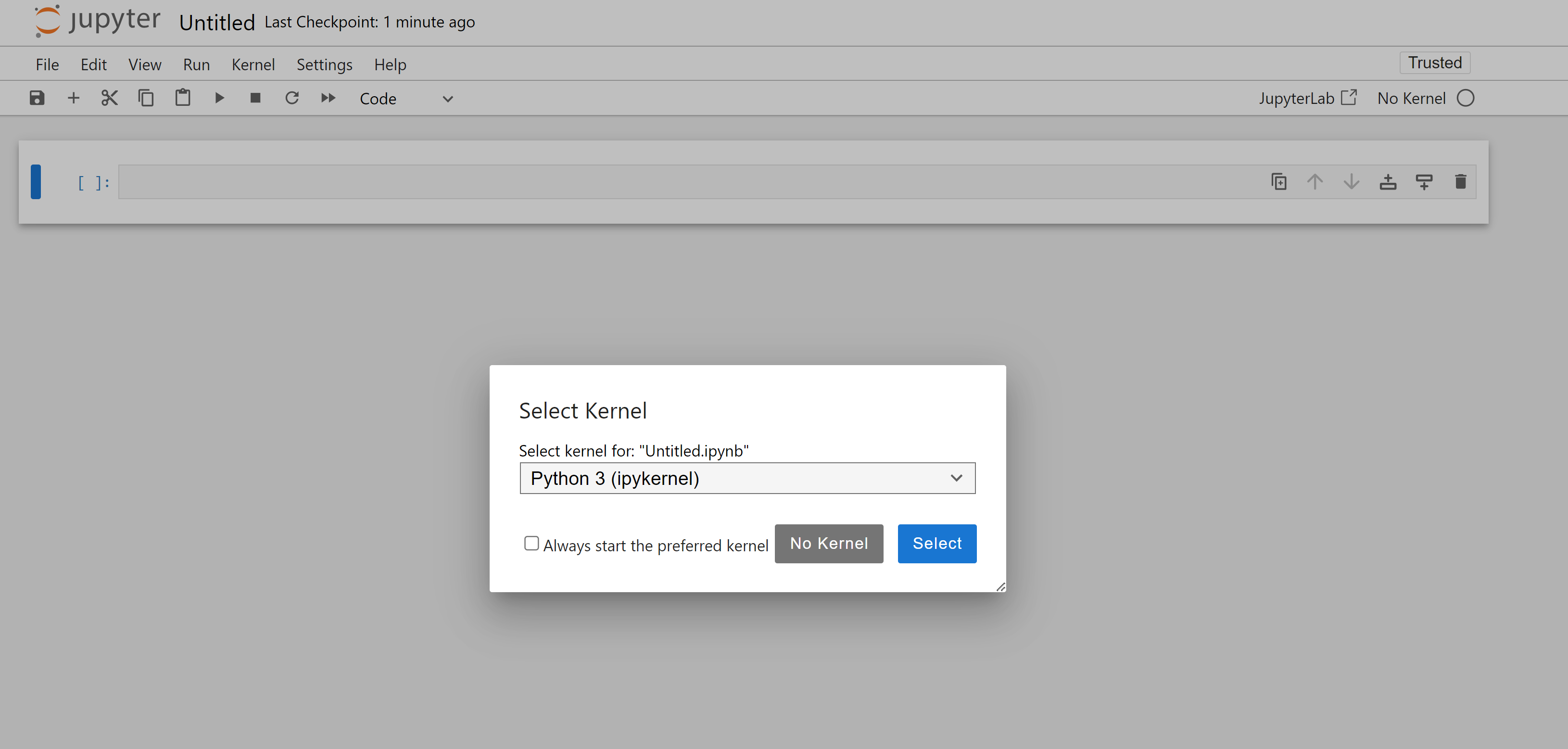
      You have a Jupyter Notebook that supports C#
    1. VS Code and Git

      As a developer finding the right editor and customizing it is one of personal preference. I had always like dark themes and was fascinated when working on Vi, Emacs, Notepad++ and TextMate. But the search for the best editor continues in my mind always.

      My primary job involves working with .Net and Visual Studio IDE is the preferred platform. I am comfortable using it, but it is huge when all you need is to edit a couple of documents. When Visual Studio Code was launched, I was excited and have used it as an editor in my office machines. Recently I am exploring my hands on using my personal Mac to try development of .Net apps.

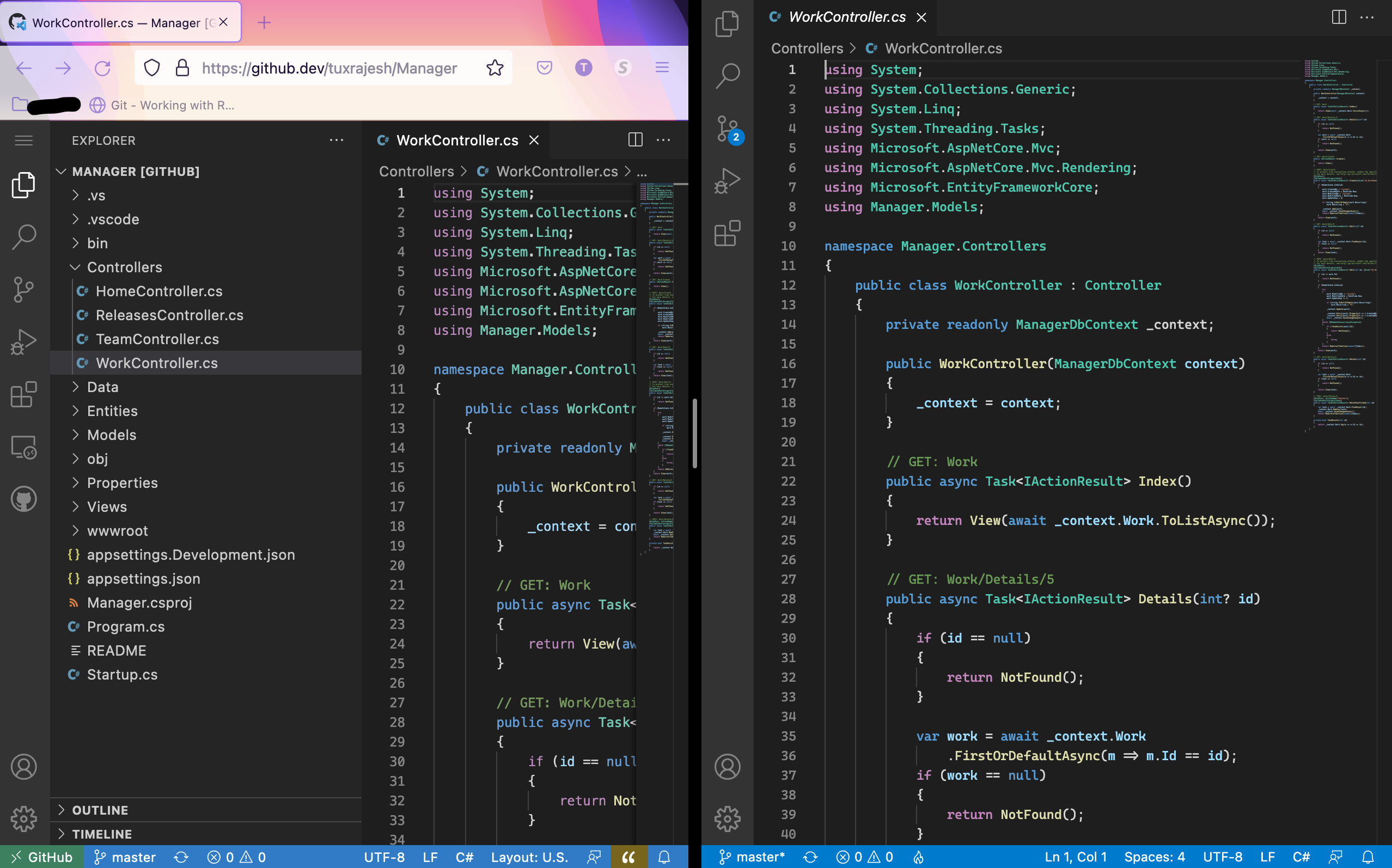
      Now I have VS Code on the Mac and have setup the same exact way as in Windows. Dark Theme+ with Cascadia Code font from Microsoft. Recently, VS Code team has announced the browser editor. Use the . key to change the browser to VS Code Editor. I am fascinated by the first look and the advancement of how now the entire editor with all its features and customization can be brought over to the browser. I’m in love with it. Here is a screenshot of the browser editor and the VS code editor side by side.

      GitHub.dev and VS Code Local
    2. MergeConfig

      Maintaining .net configurations across development, test and production regions have always been a problem that is faced. To ease this process,  I was thinking of creating a utility that makes it easy to use and help deployments. The goal was to eliminate need to save and maintain multiple files for various regions. Here it is, “MergeConfig”

      The utility uses ‘MergeConfig.xml’ as XML file to hold this information. The structure of this XML file is organized as:

      • Deployment Region <deploymentRegion>
      • File Info <fileInfo>
      • Maintain Configuration <maintainConfig>

      The Deployment Region specifies the name of the region, i.e. dev, test, prod.This section is to be defined one per region.

      <deploymentRegion name="Development">

      The File Info section specifies the file path that is to be merged. This section is defined one per region per file

      <fileInfo fileName="D:\Project\App.config">

      The Maintain Configuration section specifies what attribute to be replaced with what.

      <maintainConfig findXPath="//root/configuration/add[@key='TestConfig']" replaceAttribute="value" replaceWith="ABC" />

      Here the ‘findXPath’ attribute defines which element to look for in the configuration file. ‘replaceAttribute’ defines which attribute in the element has to replaced and ‘replaceWith’ defines the new value for that region. For example, consider the following in the App.config file

      <root>
      	<connections>
      		<connection ID="main" connectionString="DataSource=DEV;Password=PWD;UID=UID" />
      		<connection ID="log" connectionString="DataSource=DEV;Password=PWD;UID=UID" />
      	</connections>
      </root>

      We would need to use,

      <maintainConfig findXPath="//root/connections/connection[@ID='main']" replaceAttribute="connectionString" replaceWith="Data Source=localhost" />

      The syntax for running this command line utility is:

      MergeConfig.exe {/r | /region}: {/v | /verbose}

      The switch /r specifies which region to use, and /v specifies if verbose output is required.
      Examples:

      MergeConfig.exe /r:Development /v
      MergeConfig.exe /r:Development /verbose
      MergeConfig.exe /region:Development

      Click Download to get the compiled utility.

    3. Visual Studio Themes

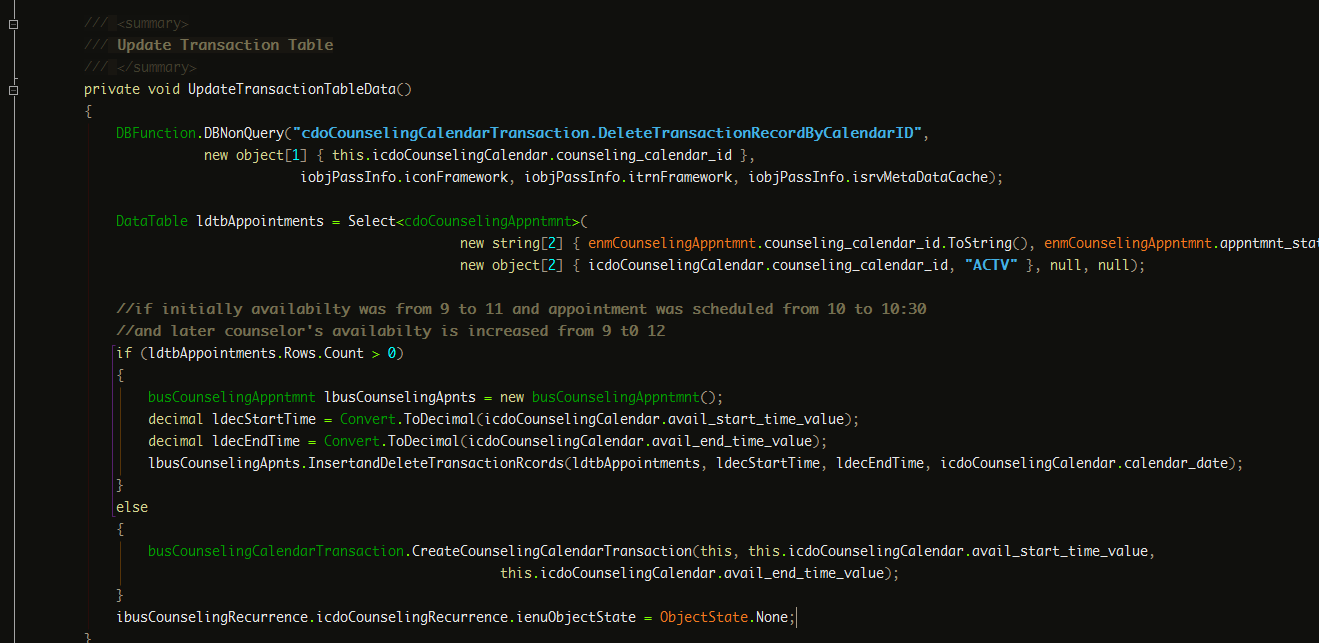
      I like changing the look and feel of the IDE and the TextEditor that I use everyday. Since I am into .net programming the IDE that I live on is the Visual Studio.

      In this post, I share the settings files (read themes) that I use for my Visual Studio 2010 setup.

      Dark Rajesh Settings

      I have used this settings for more than a year now. This settings is a modification of the DesertNights Theme available widely.

      Features:

      • Dark Theme
      • Light Contrast to be pleasing on the eyes
      • Uses Monaco Font

      VS 2010 Settings
      DarkRajesh Settings – VS 2010

      Download Settings : DarkRajesh.vssettings

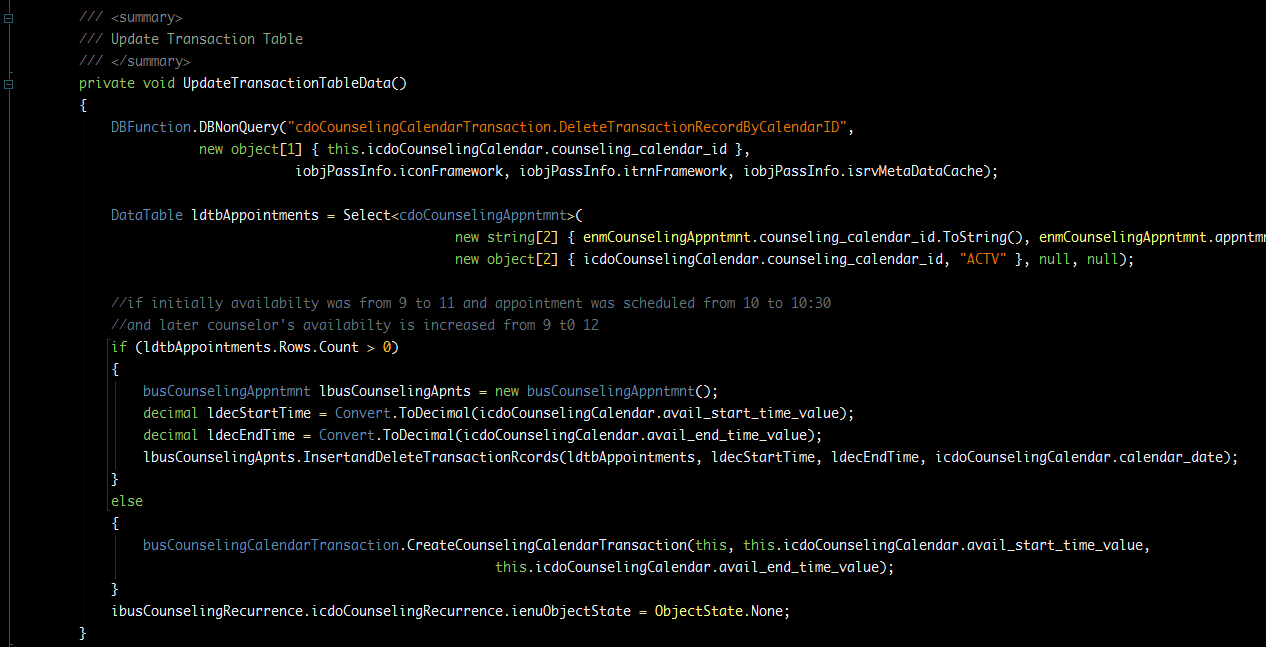
      Dark Raasukutty Settings

      This settings is a modification of the Son of Obsidian Theme.

      Features:

      • Dark Theme
      • Uses Monaco Font

      Dark Raasukutty
      Dark Raasukutty – VS 2010 Settings

      Download Settings : DarkRaasukutty.vssettings

      More VS settings can be downloaded from http://studiostyl.es/ website.